

Connect your WhatsApp Business number
What you'll learn
- How to link your WhatsApp Business number to Parlario
- What you need ready on Meta's side before connecting
- How to disconnect your number if you ever need to change it
- How Meta bills you, what changes on 1 October 2026, and the 72-hour free window that ads open
- How to see your WhatsApp usage and estimated cost inside Parlario, and set a monthly limit
- How to connect a brand-new number that isn't in Meta yet, and what to do if something goes wrong
This is what makes Parlario start sending and receiving messages through your number. Without this step, the rest of the CRM has nothing to work with.
Want your Instagram DMs in Parlario too? It's a separate, optional connection, with the same one-click Facebook flow you just used here — we walk through it step by step in the next lesson.
Need help?
Create an account on our support portal at support.parlario.co and submit a ticket. Registration is easy, and you'll only need to do it once! From there we'll walk you through it — it's the most bureaucratic part of the whole setup, and you only do it once.
Before you start: what you need ready
There are three ways to connect a number, and they need completely different things from you. Almost everyone wants the first one.
Option 1 — "Connect with Facebook" (recommended)
Parlario acts as your Tech Provider, so you never touch a developer console. What you need:
- A personal Facebook account that manages — or will manage — your business on Meta.
- A Meta Business account (Business Manager). You can create one during the flow if you don't have one.
- A phone number you control, able to receive an SMS or a phone call to verify it.
- That number must not be in use on the regular WhatsApp app. If it's on the WhatsApp Business app, you can delete that account from the phone or connect it without taking it out of the app.
- Your business name and basic details for the WhatsApp profile. Meta reviews the display name you choose.
You do not need a developer account, a Meta app, or an access token. That is the whole point of this option.
Option 2 — Direct mode (you have your own Meta app)
For businesses that already built on the WhatsApp Cloud API and want to keep owning the app. On top of everything in Option 1, you need:
- An app on developers.facebook.com with the WhatsApp product added.
- A WhatsApp Business Account (WABA) with your number already registered and verified.
- A System User in Meta Business Settings holding a permanent token with the whatsapp_business_messaging and whatsapp_business_management permissions.
- Three values to paste into Parlario: your WABA ID, your Phone Number ID, and that token.
- Your app's webhook pointed at the URL Parlario shows you in manual mode. That URL contains a secret — treat it like a password.
- Optionally your App Secret, so Parlario can verify each webhook's signature. Not required, but worth doing.
Option 3 — Agency mode (someone else is your Tech Provider)
Your agency runs the Embedded Signup on its own platform and its backend gets your token. You are pasting in what they hand you, so what you need is mostly a list of things to ask them for:
- Your WABA ID.
- Your Phone Number ID.
- The access token their backend obtained for your number.
- Ask them to point your WABA's webhook at the URL Parlario shows in manual mode — the per-WABA override — instead of at their own backend. Without this, messages reach them and never reach you.
One Meta limitation worth knowing here: message template status events do not follow that override and keep going to the app that owns them. Parlario works around it by pulling templates over the API instead — that is what the "Sync" button on the Templates screen is for.
In options 2 and 3 you paste the three values under "show manual mode", press Test connection, and save. Parlario checks the token against Meta before storing it, and stores it encrypted — if something is wrong, you find out then and there rather than when a customer writes to you.
Go to Settings → Channels → WhatsApp
In the left menu.
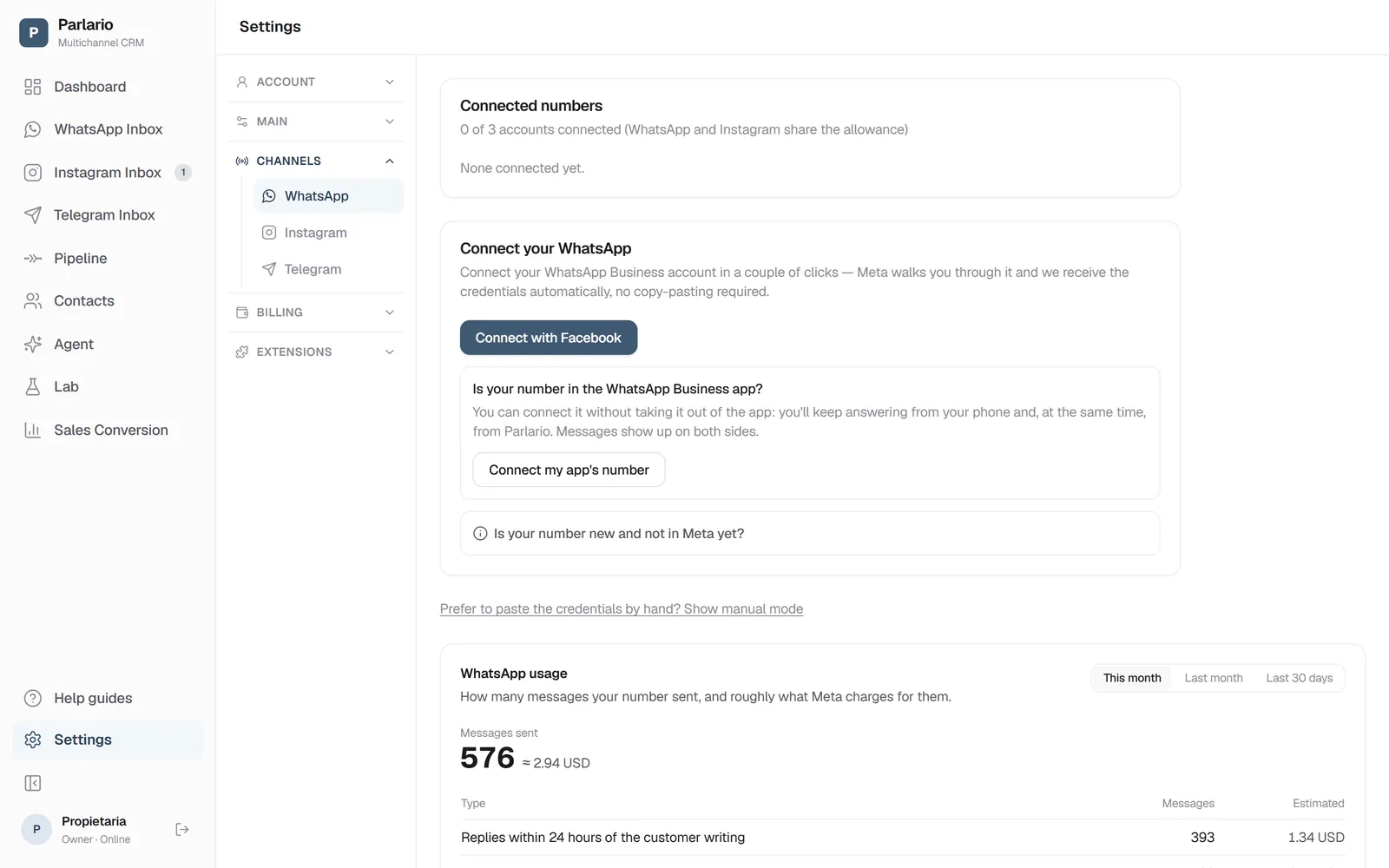
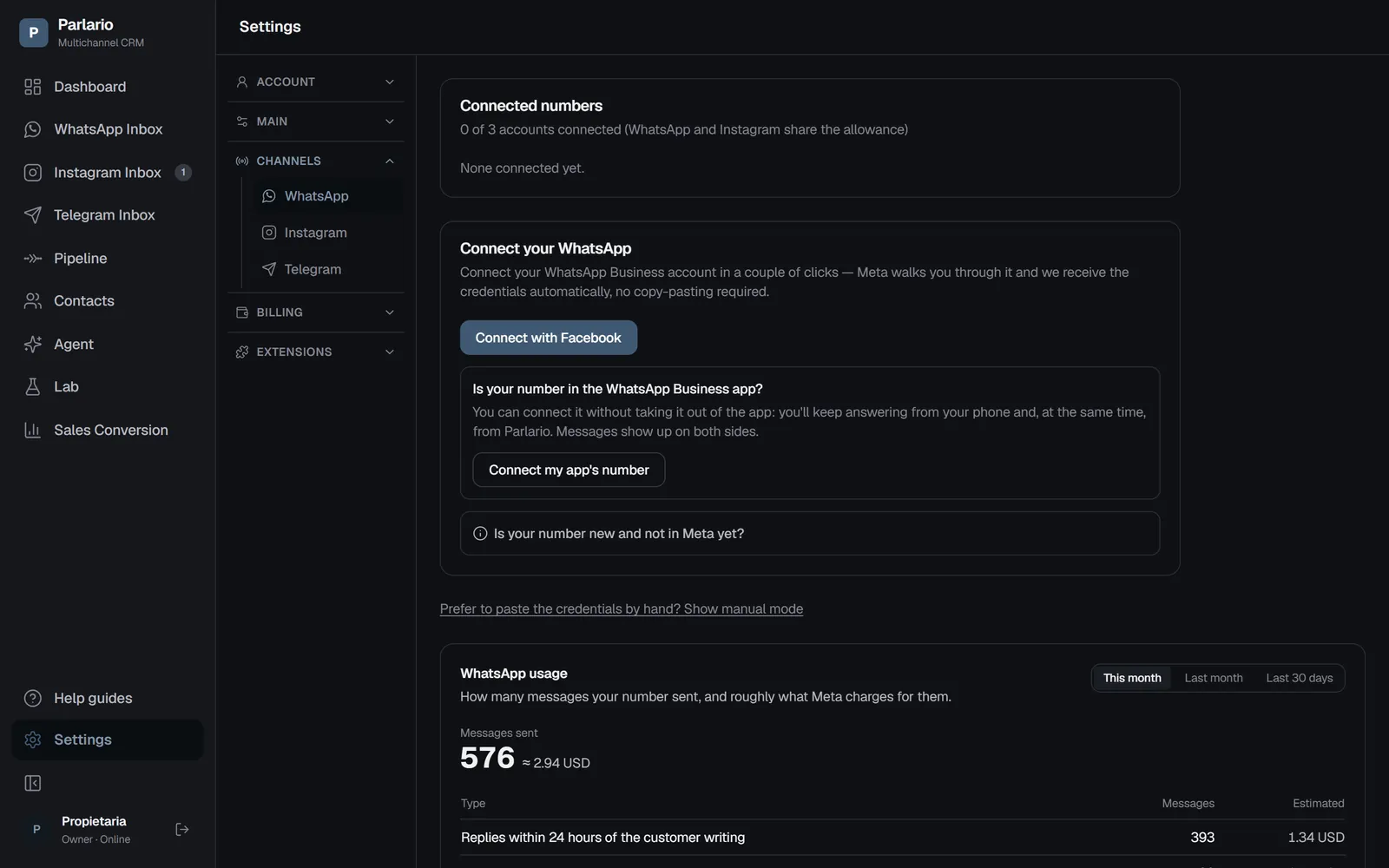
Settings → Channels → WhatsApp, with the Connect with Facebook button Click Connect with Facebook
A Facebook window opens — log in with your personal Facebook account (the one that manages, or will manage, your business on Meta/WhatsApp Business).
Confirm the permissions
Facebook will ask you to confirm the permissions Parlario is requesting to manage your WhatsApp Business.
Choose or create your WhatsApp Business account
Follow Facebook's steps to choose your existing WhatsApp Business account, or create a new one if this is the first time you're connecting this number. You'll be able to verify your number by SMS or phone call.
Wait for the connection to save
When you're done, the window closes on its own and you're back in Parlario. It can take a few seconds to finish saving the connection.
Confirm it's connected
Settings → Channels → WhatsApp should now show "Connected" with your number visible. From here on, messages sent to that number will show up in your Parlario Inbox in real time.
Connecting a brand-new number that isn't in Meta yet
You don't need to set anything up in Meta beforehand: the “Connect with Facebook” window lets you create your business portfolio and your WhatsApp Business account, and add and verify the number right there. Parlario then takes care of activating it on the WhatsApp platform.
Before you start, have ready:
- The phone with that number, to receive an SMS or a call with a code.
- The number must not be in use on the regular WhatsApp app. If it is, delete that account from the phone first (in WhatsApp: Settings → Account → Delete account). That erases the chats on that phone: back them up first if you want to keep them. If the number is on the WhatsApp Business app instead, don't delete it: follow Keep using the WhatsApp Business app on your phone.
- Your business name as you want customers to see it, and the business's contact details (address and phone).
Open the connection
Go to Settings → Channels → WhatsApp and tap “Connect with Facebook” (if you already have a number connected, it says “Connect another number”). Log in with Facebook and accept the permissions.
Pick or create your business portfolio
If you don't have one, create it right there with your business name.
Create the WhatsApp Business account
Choose create a new one (or an existing one, if you want the number alongside others).
Fill in the profile
Type the display name —the one your customers will see— and your business category. Meta reviews that name; until it's approved, customers may see just the number.
Add and verify the number
Type the number, choose to get the code by SMS or by call, and type the code you receive.
Finish
The window closes on its own and Parlario activates the number on the WhatsApp platform — a few seconds. The number shows up under Connected numbers. Right after, Meta's “WhatsApp Business” account messages the number “Continue setting up your account”, with a link to its setup guide: Parlario doesn't show it in the Inbox or reply to it, because it isn't a customer. What it says is also in WhatsApp Manager.
Add a payment method in Meta
In Meta Business settings → Accounts → WhatsApp accounts → pick the number's WhatsApp Business account → Summary tab → Payment Settings. It goes on the WhatsApp Business account, not the number: if you created a new account in step 3, that's the one. It covers what Meta charges you for messages, Meta requires it for every new number, and only you can do it.
Test it
Message the number from your personal WhatsApp. The conversation shows up in the Inbox, and your reply reaches your phone.
If something goes wrong
- “Your WhatsApp Business account was created, but without a phone number” — you finished without adding the number. Connect again and add it in step 5.
- “This number isn't verified with Meta yet” — the code from step 5 is missing. Connect again and verify it, or finish it in WhatsApp Manager.
- “Meta blocked registration for this number after too many attempts” — Meta allows 10 attempts every 72 hours. Wait that long, or open a ticket at support.parlario.co.
- “That number is already connected to another Parlario account” — a number can only be in one Parlario account at a time: disconnect it from the other one first.
Keep using the WhatsApp Business app on your phone
If your number is already on the WhatsApp Business app on your phone, you don't need to delete it: you can connect it to Parlario and keep using the app. Messages show up on both sides: what you reply from the phone appears in the Parlario Inbox, and what Parlario replies —your team or the AI Agent— appears on the phone.
Before you start, have ready:
- The phone with the WhatsApp Business app, updated to version 2.24.17 or newer. It has to be the WhatsApp Business app: a number on the regular WhatsApp app doesn't work for this.
- Your personal Facebook account and your business portfolio, as in the rest of this lesson.
What changes in the app when you connect it
Meta does this, not Parlario: disappearing messages, “view once” messages and live location are turned off, and broadcast lists become read-only. Linked devices (WhatsApp Web, the desktop app) get unlinked; you can link them again afterwards. WhatsApp for Windows isn't supported. Groups stay in the app, but don't show up in Parlario. Replies you send from the app stay free; what's sent from Parlario is charged by Meta as usual.
Open the connection
Go to Settings → Channels → WhatsApp and tap “Connect my app's number”.
Read the notice
If you want, check “Also add the people in the app's address book to Contacts” (what it does is below). Tap “Got it, connect”.
Log in and pick your portfolio
Log in with Facebook and pick your business portfolio.
Type the app's number
The app gets a message from the official Facebook Business account: open it and choose Connect.
Choose whether to share your history
The app asks whether you want to share your chat history. You can say no: Parlario starts clean and your previous chats stay on the phone. If you share it, Parlario doesn't keep it either.
Type the code
The app shows you a code: type it in the Facebook window.
Keep the app open
The number shows up under Connected numbers with the note “Also in the phone app”. Keep the app open for a few minutes while it finishes syncing.
Test it
Have someone message the number. The message reaches the app and the Parlario Inbox.
Who replies: your team on the phone and the AI
- When you reply from the phone, the AI steps away from that conversation. In the Inbox your message carries a “Phone” label, and the Details panel shows “Human attention” with the reason.
- The AI comes back on its own after 12 hours with no replies from the phone in that conversation, or when you tap “Reactivate AI”.
- The AI waits 2 minutes before replying on this number: if someone answers from the phone during that time, the AI doesn't reply.
- What the AI writes ends with a signature (“— Virtual assistant” if the AI speaks English), so you can tell on the phone what the AI wrote.
- All of this can be changed per number —along with “only outside business hours”— in Settings → Channels → WhatsApp → “AI on each number”. See Set up your AI Agent.
Your address book
- When you save someone in the app's address book, Parlario gives that name to the contact, if it already exists in Parlario. Removing someone from the address book doesn't remove them from Parlario.
- If you checked “Also add the people in the app's address book…” when connecting, the people in your address book show up in Contacts (once, when connecting). They don't enter the Pipeline and nothing is sent to them.
- To bring a list from somewhere else, use “Import CSV” in Contacts.
So the connection doesn't drop
- Open the WhatsApp Business app at least once every 14 days. The app itself reminds you: if the phone goes longer without using it, Meta may disconnect the number from Parlario.
- Meta asks for the number to be synced with the app within the first 24 hours, and Parlario does it on its own. If it couldn't, you'll see a notice in Settings → Channels → WhatsApp to connect it again.
- Some messages can only be seen on the phone (for example, some from a new customer): the Inbox shows a notice so you check them there.
Disconnecting
- From Parlario: the “Disconnect” button next to the number. The number keeps working in the app.
- From the app: Settings → Account → Business Platform → Disconnect account. Parlario detects it and lets you know in Settings → Channels → WhatsApp; from then on the number no longer sends or receives in Parlario.
⚠️ Important notice: how Meta bills you for WhatsApp
Your number is registered under your own Meta Business Manager, not Parlario's. Meta is the one who charges for the volume of messages you send over WhatsApp, directly to your Meta Business account — Parlario never sees or pays those charges, and this fee is completely separate from your Parlario subscription.
Starting October 1, 2026, this changes: today, everything you (or your AI Agent) reply to a customer WITHIN the 24-hour window is free — Meta only charges for templates used to re-open a closed conversation. From that date, Meta starts charging for EVERY message you send a customer, even inside the 24-hour window (both free-text replies and utility templates). The 24-hour window itself isn't going away — it keeps working the same, it just stops being free to reply inside it. You don't need to change anything in Parlario: the product keeps working exactly the same, this only affects your Meta bill.
If your number is also on the WhatsApp Business app, what you reply from the app on your phone stays free; what's sent from Parlario is charged as above.
Official source: Meta — WhatsApp Business Platform pricing for non-template messages.
See what you're spending, without leaving Parlario
Since Meta bills you directly, the only way to know what a month costs used to be opening Meta Business Manager. Parlario now counts it for you, in Settings → Channels → WhatsApp, right below your connected number. Only the owner (and whoever holds implementation access) sees it — the rest of your team doesn't need to.
Look at how many messages went out
Pick This month, Last month or Last 30 days. You get the total sent from your number, and a table split by what Meta charges for: replies within 24 hours of the customer writing, and utility and marketing templates.
Below that, who sent them: your AI agent, your team, or automatic messages like reminders and store updates. That's the number that tells you where to act — if the agent is sending 70% of your billable messages, that's where the cost lives.
Add your prices to see an estimate
Click Add your Meta prices. Pick the currency your Meta price list is in, and type the price per message for marketing, utility and in-window replies. Copy them from your own price list in Meta Business Manager: rates differ by country and change over time, so Parlario doesn't guess them for you, and it never converts between currencies.
You don't have to fill in all three. Parlario only adds up the ones with a price, so a partial estimate never pretends to be the whole bill.
There's also a field for free service messages per month, if Meta gives your account an allowance of in-window replies. Check your own account: set it to 0 if you don't get one. It only changes the estimate, never what you can send.
Set a limit, so October doesn't surprise you
Under Spending limit you can set one limit — by money or by number of messages, never both, so there's never any doubt about which one stopped things:
- By number of messages: every WhatsApp message sent from your number this month.
- By estimated spend: uses the estimate above, so it needs your prices loaded.
Then choose what happens when you reach it: warn me here, or warn me and pause the AI agent. If the agent pauses, it simply stops replying — your team keeps answering by hand, and your customers are never told anything about budgets. Raise or remove the limit and the agent starts again. The limit covers the current month and resets on the 1st.
Keep an eye on it from the Dashboard
Next to your Monthly Active Contacts counter you'll see “WhatsApp messages this month” with a link to the full breakdown. Also owner-only.
It's an estimate, not your invoice
Parlario counts the messages it sent from your number. Meta provides the final counts and does the billing, charging your Meta Business account directly. If you also message that number from another tool, those aren't counted here. Any difference with Meta's invoice is normal, and Meta's number is the one that counts.
More than one number?
You can connect more than one WhatsApp number to the same Parlario account. In Settings → Channels → WhatsApp, the button changes to "Connect another number", and each number gets a name your team chooses ("Sales", "Support").
How many depends on your plan: Essential includes 1 WhatsApp number, 1 Instagram account and 1 Telegram bot; Business, 3 in total, and Advanced, 5 in total. On Business and Advanced, WhatsApp, Instagram and Telegram share the allowance: each number, Instagram account and Telegram bot takes one slot. With two or more numbers, the usage panel adds a "By number" section, and the cost estimate and the cap still cover the whole account. The full details are in Several numbers and accounts.
Exercise
Recap
- To connect WhatsApp you need a Meta business portfolio with complete contact details (address and phone)
- If you don't have a business portfolio, it's free and takes a few minutes to create at business.facebook.com
- Meta's decisions about your account (suspensions, sending limits) are not Parlario's responsibility — you manage your account with Meta
- If you need to switch numbers, the account owner can disconnect it from Settings → Channels → WhatsApp and connect a new one
- A new number doesn't need preparing in Meta first: it's created and verified in the Connect with Facebook window, and then you add a payment method to its WhatsApp Business account in Meta Business settings
To unmark the lesson, select the button again.
Questions? Visit our support portal: support.parlario.co