

Marketing templates: Default
What you'll learn
- How a Marketing template differs from a Utility one
- How to add an image, a coupon code and buttons to a promotion
- Why the customer's opt-in comes first
A Default Marketing template is a promotional message: an offer, a new product, a coupon, a "come back" message. It's built exactly like a Utility: Default template — read that lesson first if you haven't — so here we focus on what changes for promotions.
Example we'll build: an image of the promotion, "Hi Ana, this week you get 15% off everything in store.", a Copy code button with the coupon, a Shop now button and a Stop promotions quick reply.
Make sure the customer agreed to receive promotions
Meta requires the customer's opt-in before you send them marketing — for example a checkbox on your website or the customer saying yes in the chat. Sending promotions to people who didn't agree gets your number reported and restricted by Meta.
Open the form and choose MARKETING
Settings → Templates → New template. Name it (for example
weekly_promo), choose the language and, in Category, MARKETING. Keep Named variables.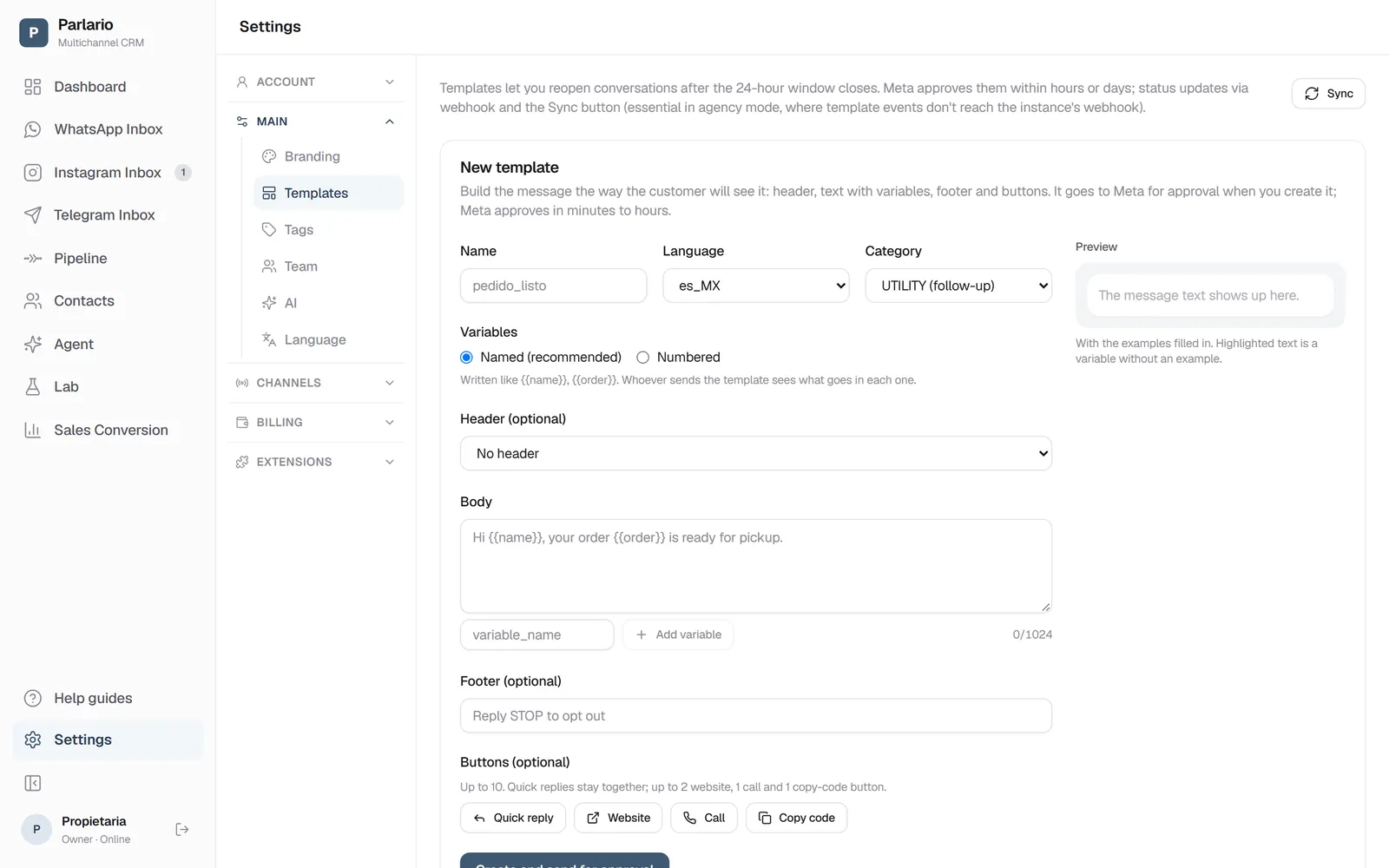
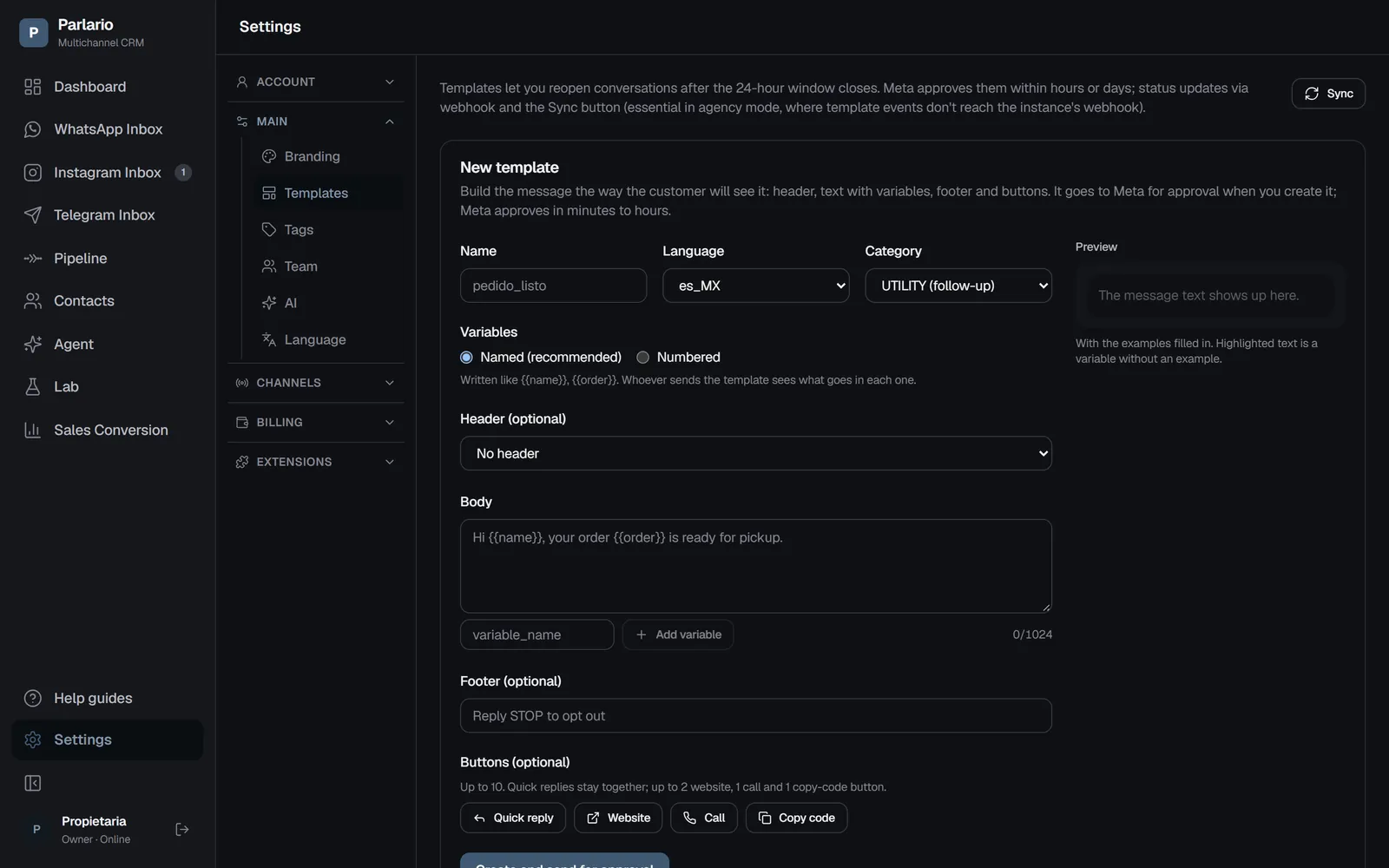
Settings → Templates: the form to create one Add an image header
In Header choose Image and click "Upload sample file": a JPG or PNG up to 5 MB. That image goes out with every send. You can also use a Video (MP4) or a Document (PDF, like a menu or a price list).
Write the offer
In Body:
Hi {{name}}, this week you get 15% off everything in store. Use the code below at checkout.Fill in the example (Ana). Remember: the message can't start or end with a variable.Add a footer
A good habit for promotions:
Not interested? Tap "Stop promotions".Add the buttons
- Copy code — write a sample code (up to 15 characters, for example
SAVE15). The customer copies it with one tap. You'll put the real code when sending. - Website —
Shop nowwith your store link. - Quick reply —
Stop promotions. When someone taps it, you'll see it in the Inbox: stop sending them marketing.
Quick replies always stay together, before or after the other buttons — Parlario places them correctly for you.
- Copy code — write a sample code (up to 15 characters, for example
Send for approval
Click "Create and send for approval" and fix anything marked in red. Marketing templates get a stricter review than Utility.
Send it from the Inbox
Once Approved, open the conversation of a customer who opted in, choose weekly_promo, fill in the name and the real coupon code, and send. Parlario sends templates one conversation at a time — it doesn't do mass campaigns.
Marketing costs more and is watched more closely
Meta charges more for marketing messages than for utility ones, directly to your WhatsApp Business account, and watches how customers react: if many block or report you, Meta lowers your template's quality or pauses it. Parlario shows that quality and each template's status in Settings → Templates, and warns you when the quality drops; the details are in When a template stops delivering.
Recap
- Only send marketing to customers who agreed to receive it
- Copy code buttons are great for coupons: the real code goes in when you send
- Add a way to stop promotions — a quick reply or a footer line
To unmark the lesson, select the button again.
Questions? Visit our support portal: support.parlario.co