

Message templates
What you'll learn
- Why WhatsApp requires an approved template after 24 hours
- The difference between Utility and Marketing, and between Default, Flows and Catalog
- Which types you can create in Parlario today
- What to do when Meta pauses or disables a template
Understand the 24-hour window
WhatsApp only lets you write freely to a customer during the 24 hours after their last message — it's a WhatsApp rule, not something Parlario imposes. After that, the only way to write first is a template: a message you prepare in advance and Meta approves.
Pick the category: Utility or Marketing
Utility is for messages the customer is expecting because of something they did: an order confirmation, a shipping update, an appointment reminder, a payment link for a purchase they asked for. Marketing is everything promotional: offers, discounts, new products, "we miss you" messages. Meta checks the category and can change it if it doesn't match the text.
Pick the type
Inside each category, Meta offers several types. This is what each one is and whether you can use it in Parlario today:
| Category | Type | What the customer sees | In Parlario |
|---|---|---|---|
| Utility | Default | A message with text, and optionally a header (text, image, video or PDF), a footer and buttons | Available |
| Utility | Flows | A button that opens a small form inside WhatsApp | Not yet |
| Marketing | Default | Same as Utility Default, for promotions | Available |
| Marketing | Catalog | A button that opens your product catalog inside WhatsApp | Not yet |
| Marketing | Flows | A button that opens a form for a promotion (sign-ups, surveys) | Not yet |
Create it
Go to Settings → Templates and fill in the New template form. The step-by-step, with an example, is in Utility: Default and Marketing: Default.
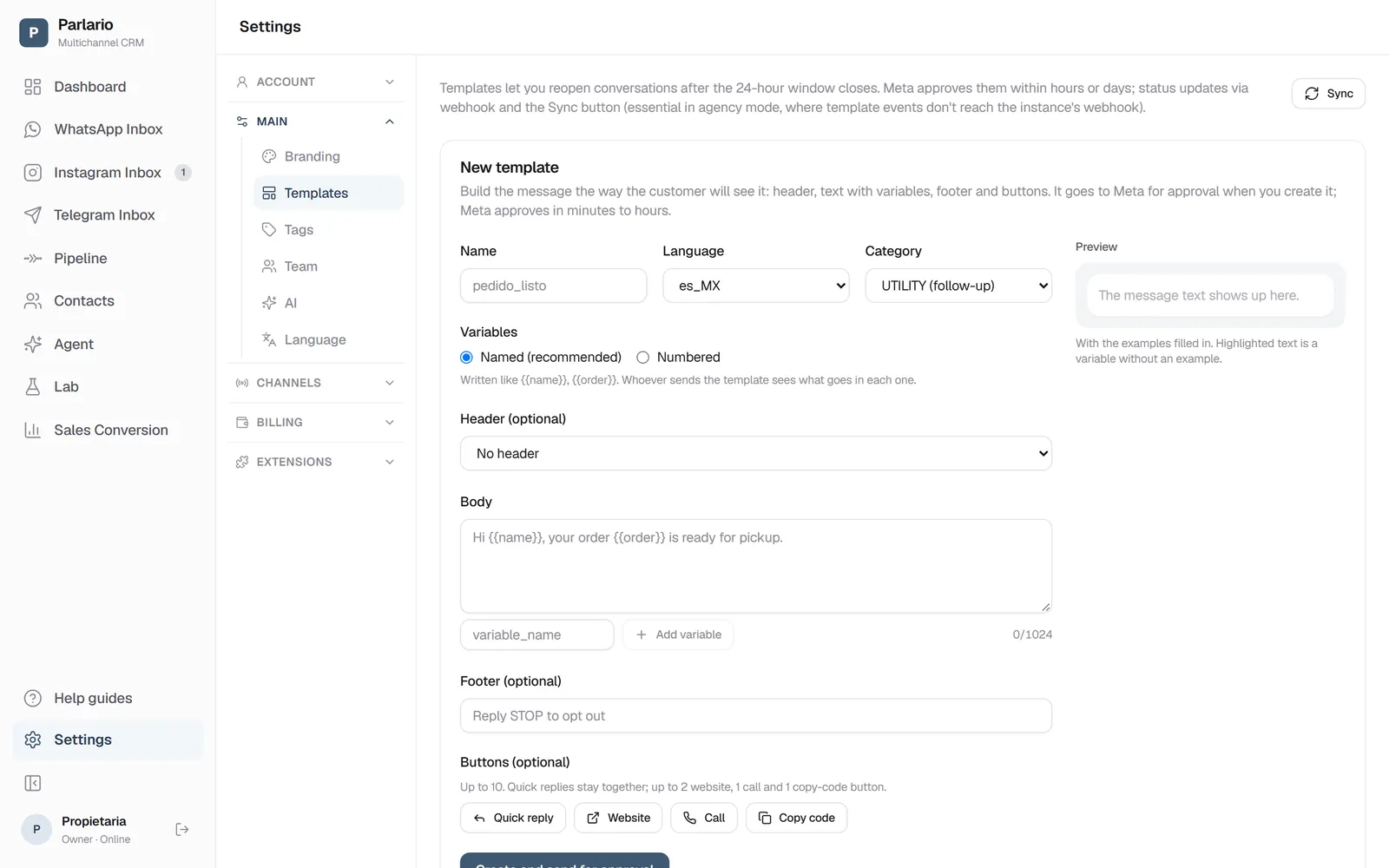
Settings → Templates: the form to create one Wait for Meta's approval
Click "Create and send for approval". Meta usually answers in minutes, sometimes hours. The status (Pending Meta, Approved or Rejected, with the reason) updates on its own; use "Sync" to force it. Later on, Meta can also mark it Paused or Disabled: see When a template stops delivering.
Send it from the Inbox
Open a conversation whose 24-hour window has closed. Instead of the text box you'll see the template picker: choose the template, fill in the fields it asks for, and send.
Templates created in WhatsApp Manager
If you already have templates in Meta's WhatsApp Manager, tap Sync in Settings → Templates: Parlario brings them all in, from each of your accounts, with their content and status. They're marked From WhatsApp Manager and are read-only (change or delete them there, then sync again). If they have an image, video or document header, they ask you to Upload file once, because Meta doesn't give us that file. Types Parlario can't send yet (Flows, Catalog, authentication) show with the reason but aren't offered to pick.
When a template stops delivering
An approved template doesn't stay approved forever. Meta watches how customers react —whether they block it, report it or ignore it— and if its quality drops, Meta holds it back without anyone touching it. In Settings → Templates each template shows its status and quality, with a box that explains what happened, when it comes back and what Meta said. And if you try to send it from the Inbox, Parlario tells you why it doesn't go out.
| Status | What it means | What happens to your messages |
|---|---|---|
| Paused | Meta held it back for low quality. The first pause lasts 3 hours and the second 6; then Meta resumes it on its own. | Nothing goes out while it lasts. Reminders wait for the pause to end and go out afterwards; Shopify and WooCommerce alerts from that window aren't sent. |
| Disabled | Its quality stayed low after two pauses. | It can't be sent anymore, and reminders that use it are canceled. Create a new one with different wording and swap it in wherever you used the old one. |
| In appeal | You appealed a rejection and Meta is reviewing it. | It can't be sent until Meta answers. |
| Being deleted | It was deleted and Meta is removing it. | It can't be sent, and Meta won't let you reuse the name for 30 days. |
Quality warns you before a pause
Next to the status you'll see the quality: high (green), medium (yellow) or low (red). At medium or low, Parlario warns you: that's the moment to check who you send the template to and whether the wording helps them, before Meta pauses it. A new template may not show a quality yet: Meta rates it once it has reached enough customers.
With several numbers
Templates live in your Meta WhatsApp Business account, not in each number. If all your numbers are in the same account —the usual case when you connect with Facebook—, they share the same templates and nothing changes. If they're in different accounts —it can happen even within the same Meta portfolio—, each template can only be sent by the numbers in its account: when you create it you choose Which number will use it? (one number, or All my numbers, which creates a copy in each account), and the Inbox only offers, in each conversation, the templates from its number's account. The full details are in Several numbers and accounts.
Recap
- Your AI Agent never sends templates on its own — it only replies freely inside the open window, or hands off to a person
- Choosing the wrong category (Utility vs. Marketing) is a real violation of Meta's policy, not just a pricing detail
- Template pricing is set and charged by Meta directly to your WhatsApp Business account, not Parlario
- An approved template can become Paused or Disabled if customers block or report it: Settings → Templates tells you why and when it comes back
To unmark the lesson, select the button again.
Questions? Visit our support portal: support.parlario.co