

Get to know your dashboard
What you'll learn
- What each section of the left-side menu is for
- What order to set things up in the first time
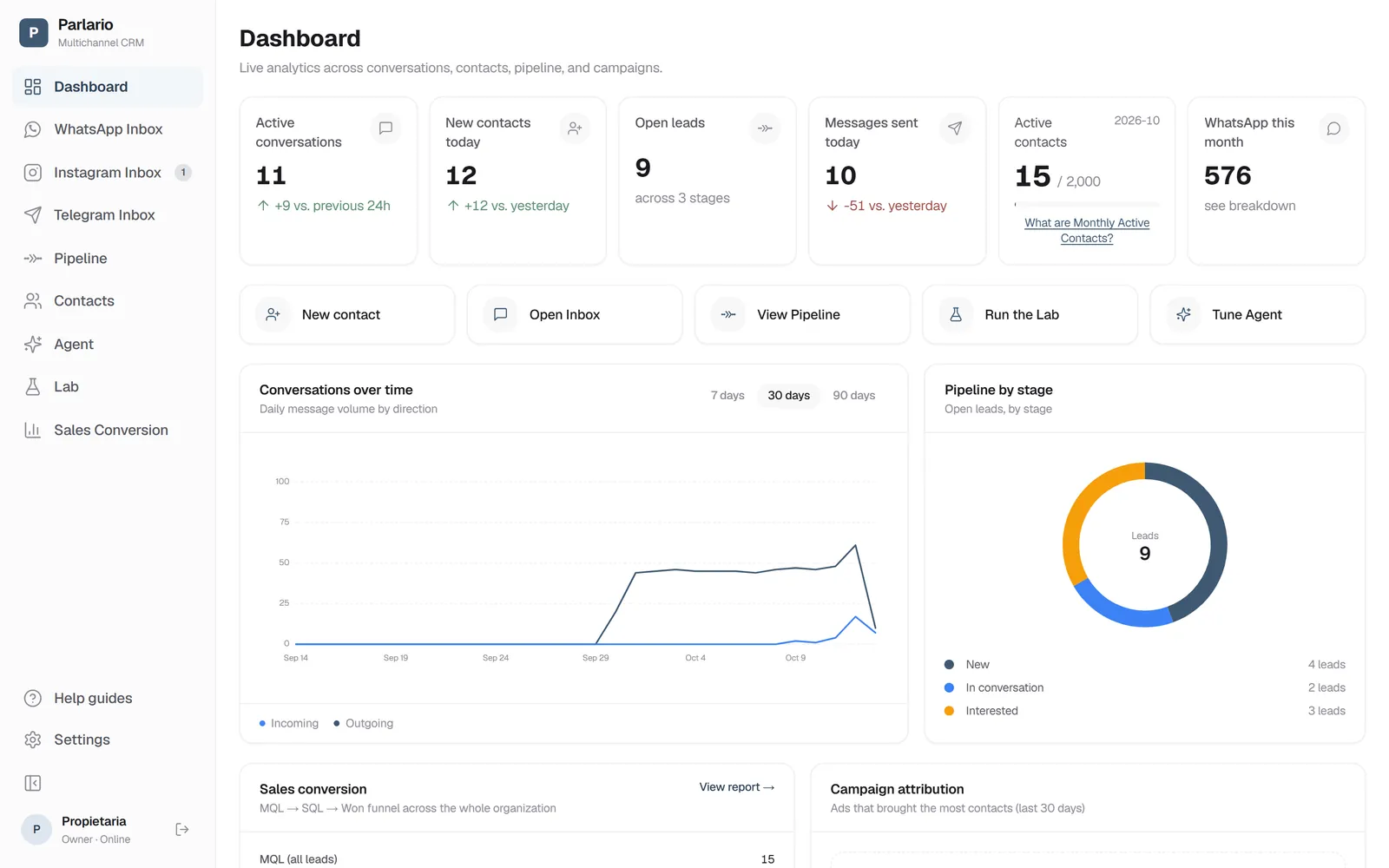
Once you're in, you'll see a menu on the left. This is also the order we recommend using them the first time — it's exactly how these guides are organized:
| Section | What it's for |
|---|---|
| Dashboard | Your live metrics: conversations, new contacts, open leads and recent activity. It's the first thing you see when you log in. |
| WhatsApp Inbox | Your WhatsApp conversations, in real time. |
| Instagram Inbox | Your Instagram DMs, in real time — a separate tab, only shown if you connected Instagram (optional). |
| Telegram Inbox | Your Telegram bot's messages, in real time — a separate tab, only shown if you turned on Telegram (optional). |
| Pipeline | Your contacts organized by sales stage (kanban board). |
| Contacts | The full list of everyone who's messaged you. |
| Agent | Configure how your AI assistant replies (same agent for WhatsApp, Instagram and Telegram). |
| Lab | Test your agent before it talks to a real customer. |
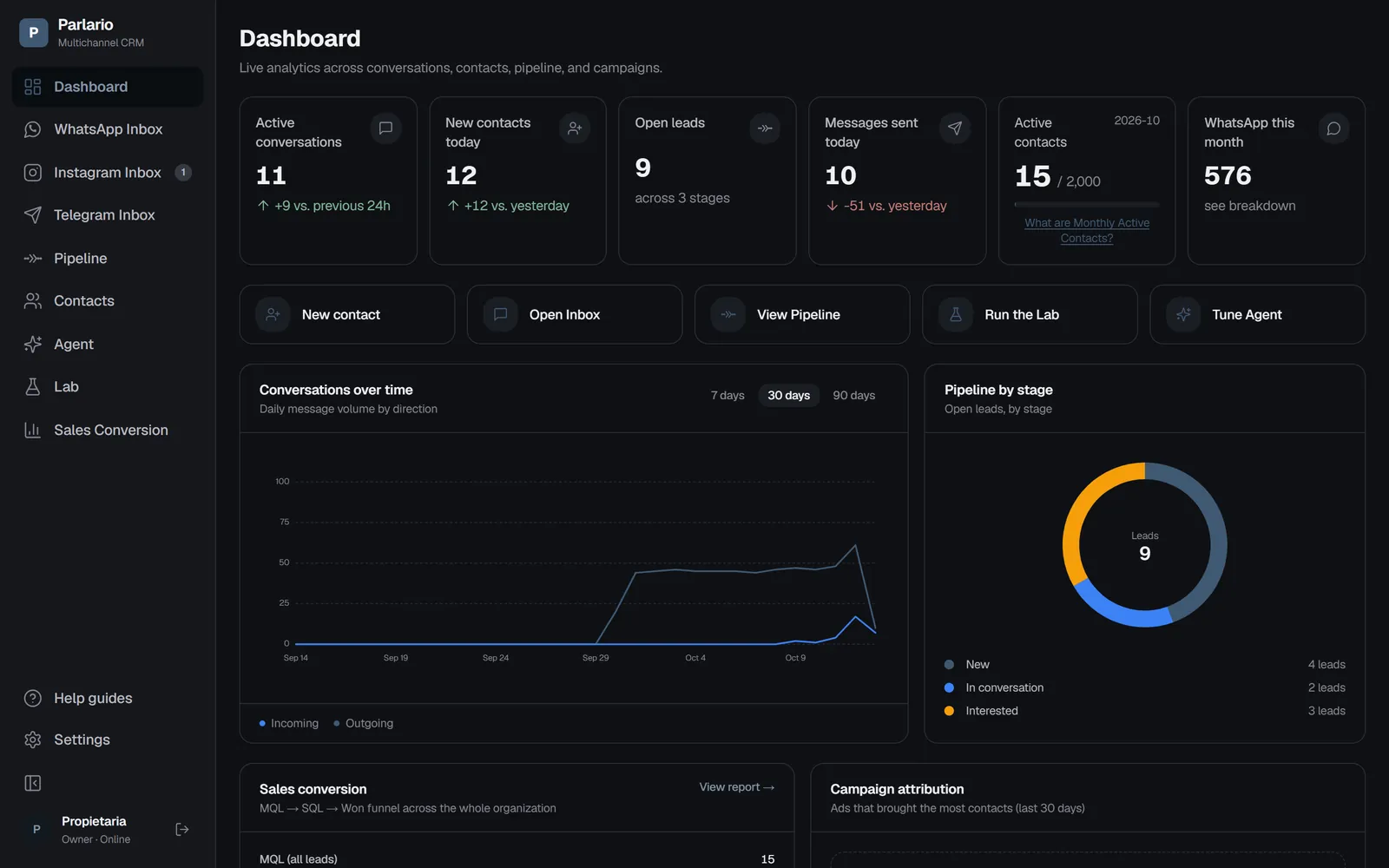
| Settings | Everything you configure: WhatsApp, Instagram, Telegram, branding, team, AI, templates, language, calendar, Meta ads and API keys. Your profile, your password, light/dark mode and your subscription live here too. |
The next lessons walk you through the recommended initial setup, in order — starting with the most important part: connecting your WhatsApp.
Recap
- The Instagram Inbox only shows up if you connected Instagram — it's optional
- The same AI Agent replies on WhatsApp, Instagram and Telegram
To unmark the lesson, select the button again.
Questions? Visit our support portal: support.parlario.co