

Set up your AI Agent
What you'll learn
- The fields that define how your agent talks and decides
- How to turn on spoken replies and choose a voice
- What an AI credit is, where to see your usage and what happens at the limit
By default, your agent runs on the AI infrastructure Parlario pays for, included in your subscription. If you'd rather use your own account (OpenRouter, OpenAI, or Google Gemini), you can do that from Settings → AI — the rest of this guide assumes you're using the shared key, which is the simplest way to get started.
About spoken replies: they're included on all 3 plans equally — not a premium feature — but only OpenAI can actually produce the voice. That has a concrete consequence depending on which key you connect:
- With your own OpenAI key: voice runs on your account, same as chat. No limit from us, and you pay for it.
- With your own OpenRouter or Google Gemini key: voice still works, but your key doesn't pay for it — we produce it with Parlario's shared key, so it consumes your shared monthly AI quota even though chat is running on your own account. If that quota runs out, chat keeps going on your key while voice stops replying until next month.
- With no key of your own: everything comes from the shared quota, chat and voice alike.
You don't need a second key. It's the same one you use for chat: if the provider you picked is OpenAI, that single key covers both text and voice. The one thing worth checking is that the key isn't restricted to chat only in your OpenAI account — voice uses the audio endpoints, and a key scoped to something else will fail there even though chat works fine.
About the model: if you connect your own key, you can also
type which model to use with it (for example gpt-5.4-mini,
anthropic/claude-sonnet-4.5 or gemini-2.0-flash).
It's a free-text field on purpose: providers release new models constantly
and we don't want you waiting for us to add them to a list. Type it exactly
as it appears in your provider's catalogue — if it doesn't match, it won't
work — and use the Test key button before saving: it tells
you whether the problem is the key or the model name, which are fixed in
different places. Leave the field empty and we use a sensible default,
which is what you want if you have no particular preference. The model you
choose is used by both the Agent and the Lab.
Go to Agent → Behavior
This is where you give your virtual assistant its personality. You can get it ready now and turn it on whenever you want — it won't reply automatically until you decide it should.
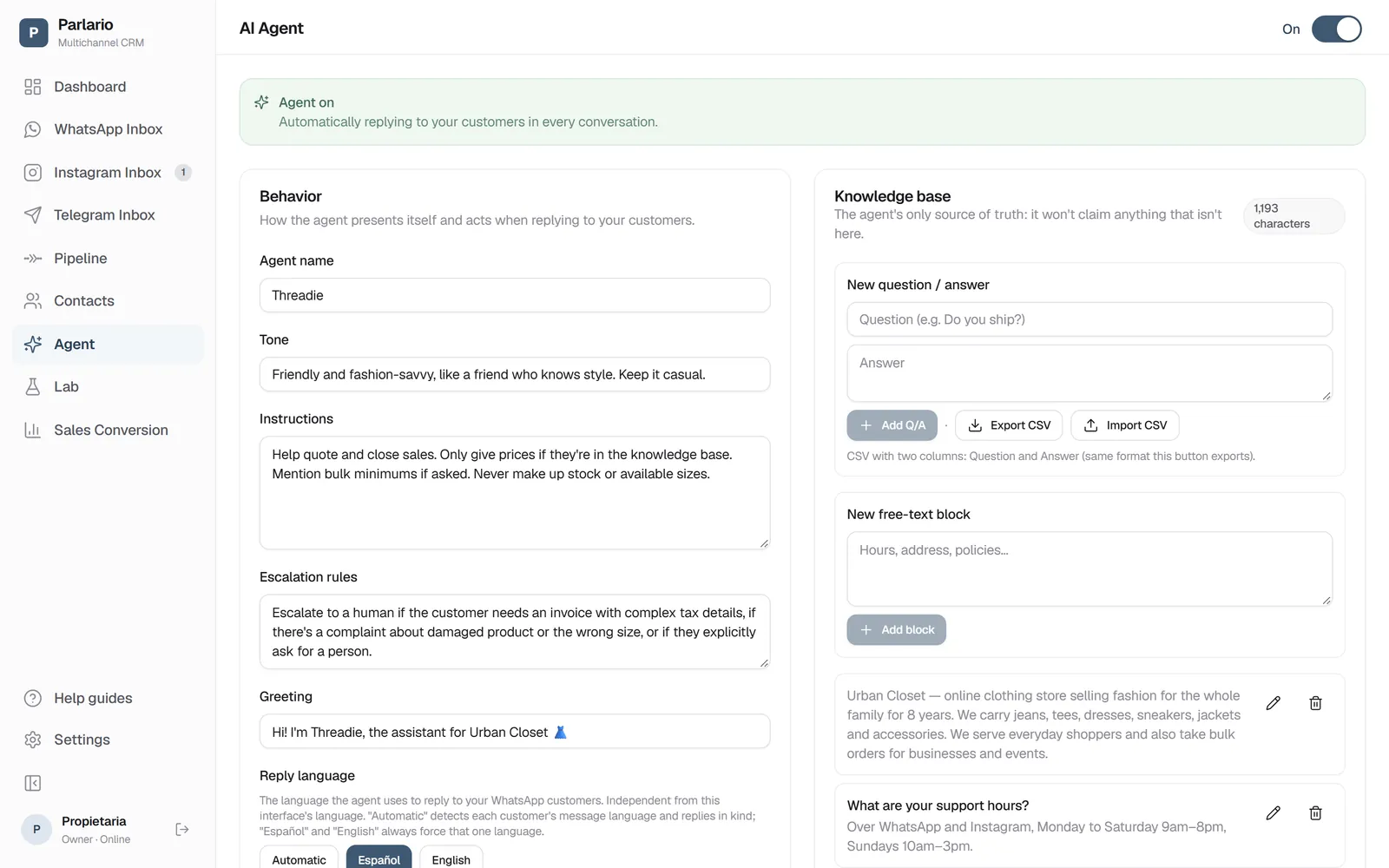
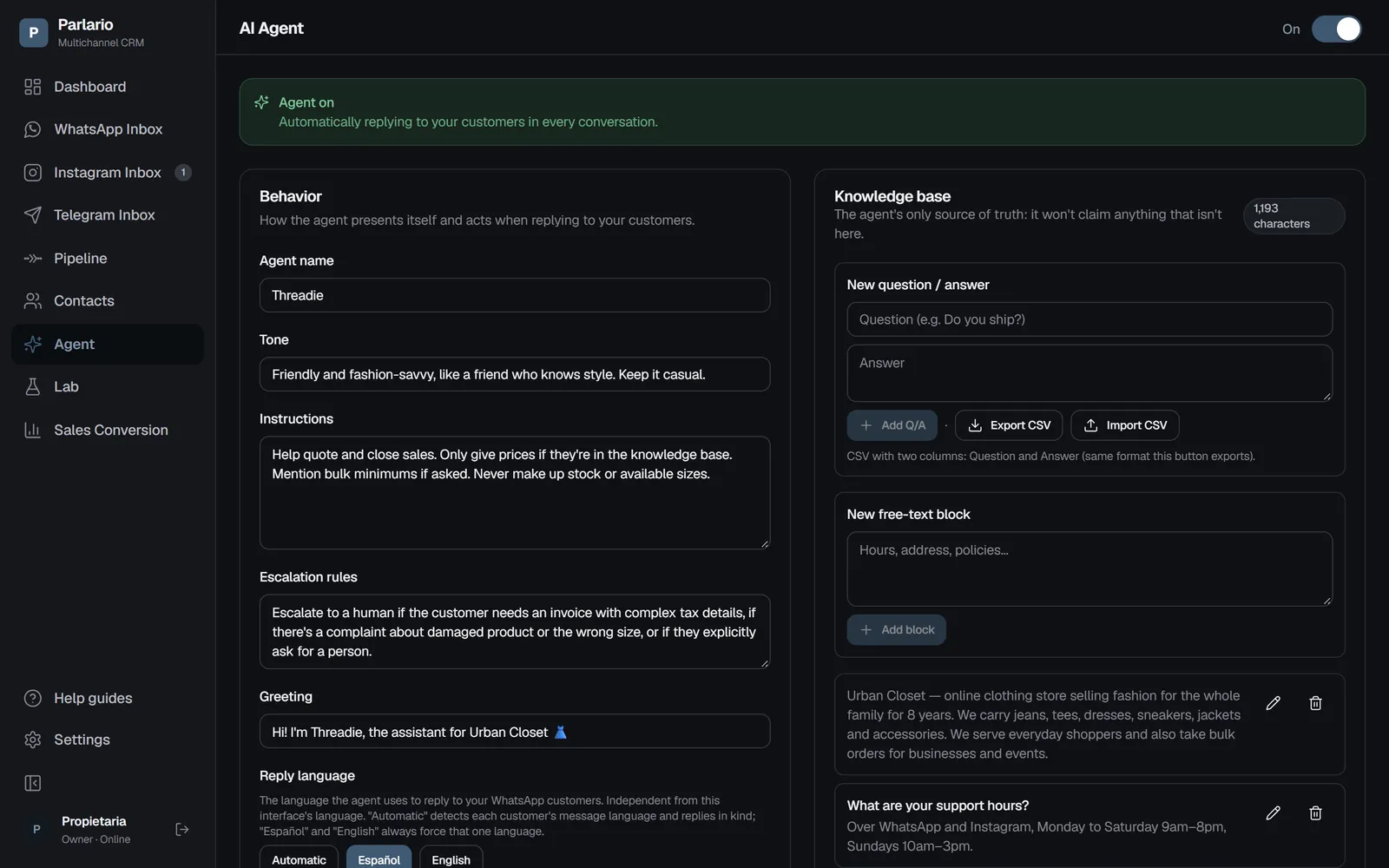
Agent: its behavior on the left and the knowledge base on the right Name and tone
Agent name: how it introduces itself (for example, "Anna"). Tone: how it talks (for example, "friendly and direct").
Instructions and escalation rules
Instructions: what it should and shouldn't do. Escalation rules: when it should hand the conversation off to someone on your team instead of replying itself. Make sure neither one contradicts the other for the same case.
Greeting and reply language
Greeting: the message it opens a new conversation with. Reply language: fixed Español or English, or Automatic — the agent detects the language of the customer's last message and replies in kind, without asking or mentioning that it's detecting anything.
Spoken replies (optional)
If a customer sends you a voice note on WhatsApp or Telegram, the agent always transcribes it so it understands it and you can read it in the Inbox. On WhatsApp, the "Reply with voice when the customer sends voice" toggle decides whether that turn's first reply is also sent back as a voice note instead of text. On Telegram the agent always replies in writing. With the toggle on, pick from 6 voices (Alloy, Echo, Fable, Onyx, Nova, Shimmer).
Save
Click "Save behavior."
Go to Settings → AI
Only the account owner sees this screen: the key decides who pays for AI usage. If you don't connect one, everything keeps running on Parlario's shared quota and you can skip the rest of this section.
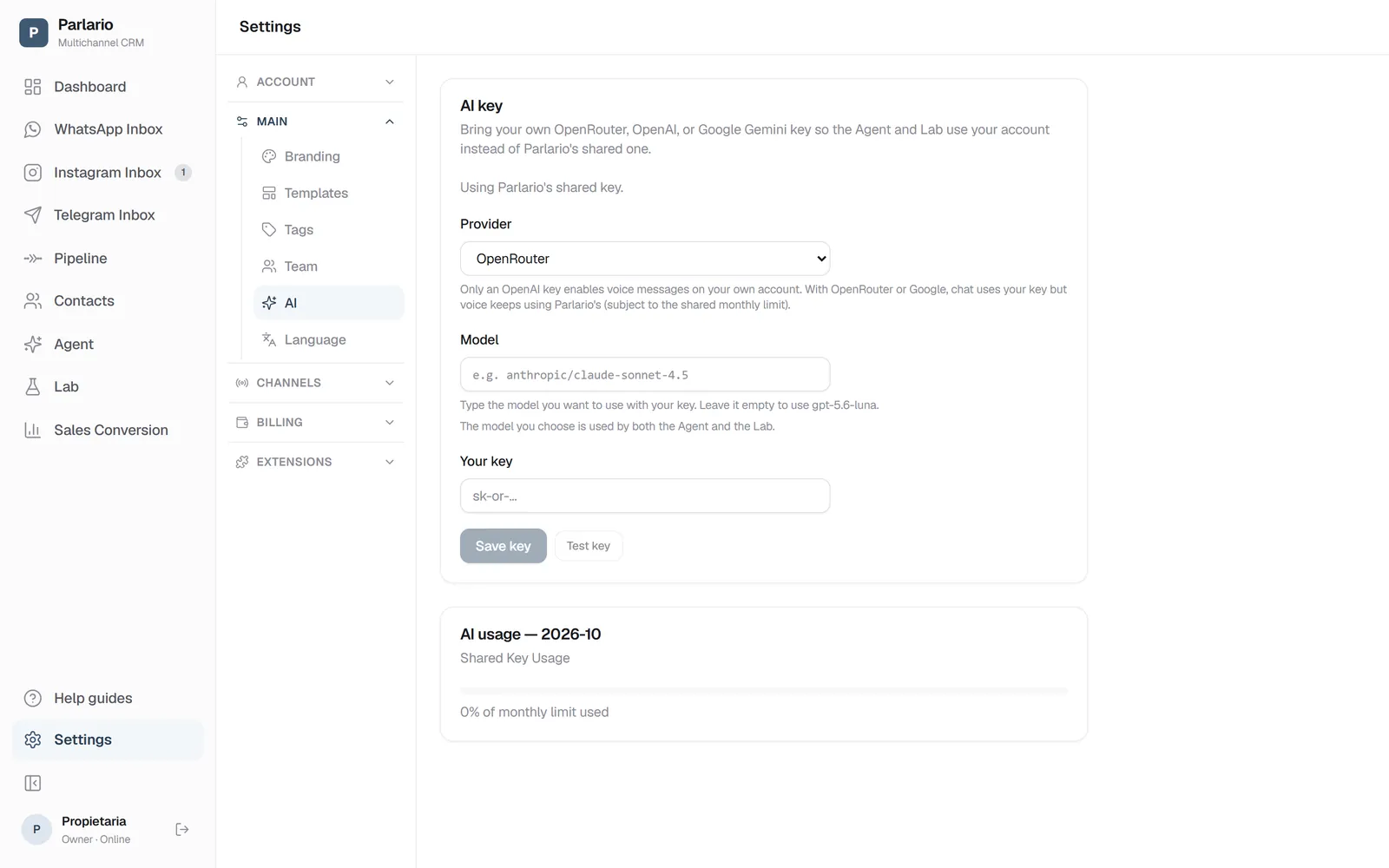
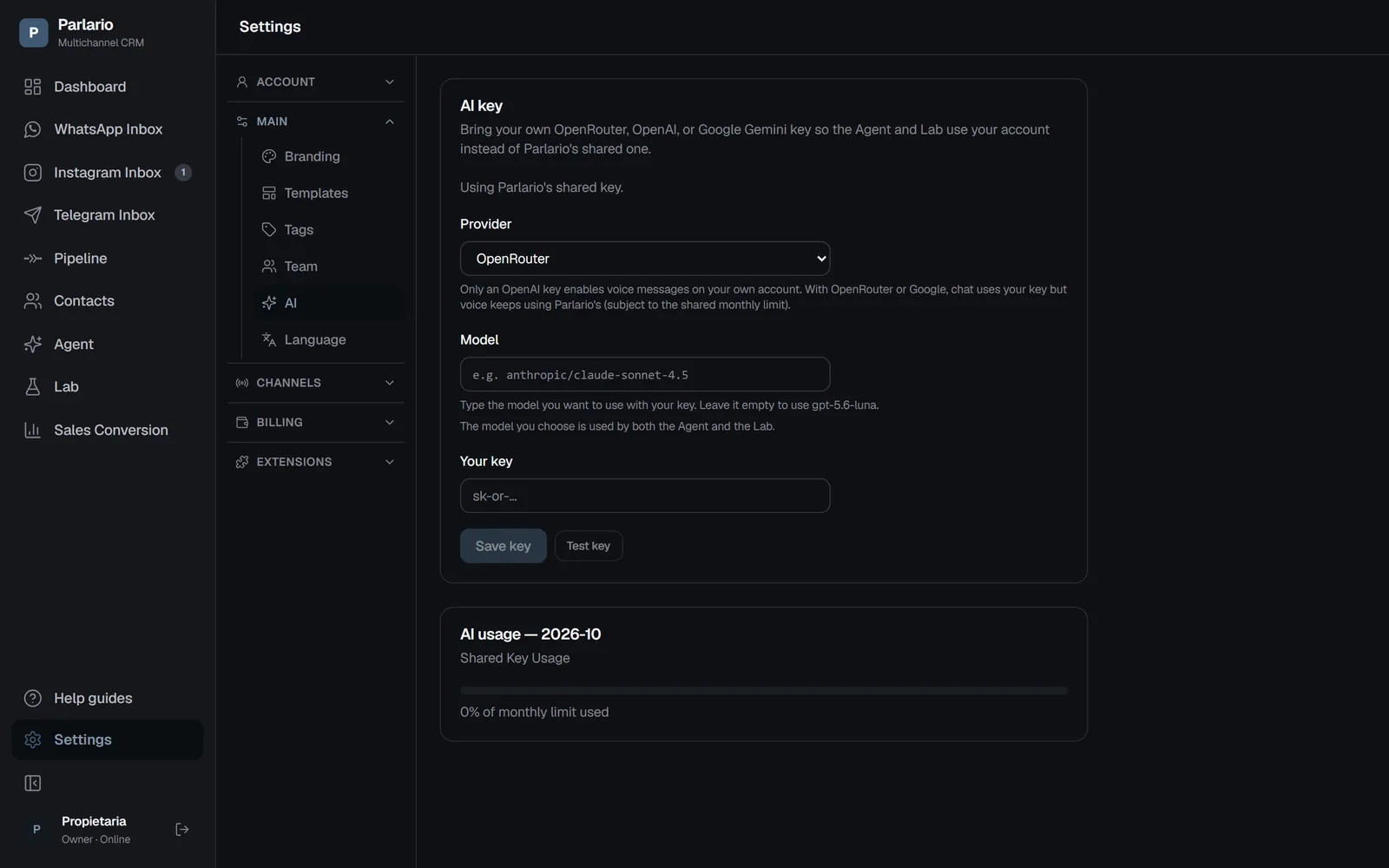
Settings → AI: the provider and your key Pick the provider
OpenRouter, OpenAI or Google Gemini. Choose the one your key came from: pasting an OpenRouter key with "Google" selected won't work. Note that only OpenAI enables spoken replies on your own account — with the other two, chat uses your key but voice keeps using Parlario's.
Type the model (optional)
Which model should run on your key, for example
gpt-5.4-minioranthropic/claude-sonnet-4.5. Copy it exactly as it appears in your provider's catalogue: one wrong character and it won't work. Leave it empty and we use a sensible default, which is the reasonable choice if you have no preference.Paste your key
We encrypt it before saving and never show it again — not even we can recover it. If you lose it, revoke it at your provider and create a new one.
Test before saving
The Test key button makes a real, minimal call to your provider and tells you what happened. It separates two things that are fixed in different places: the provider rejecting your key, or the key working but not recognising the model you typed. Without this, an error would only surface when a customer was waiting for a reply.
Save
From then on the Agent and the Lab use your account. You can change the model later without pasting the key again, and remove the key whenever you want to go back to the shared quota.
Who the handoff goes to
Below the escalation rules, “Who the handoff goes to” lets you send each handoff to a specific team member based on the reason. Add a rule with when (“The customer is upset or complaining”, “Payments, invoices or refunds”) and who, up to 10, and choose who gets everything else — including customers who ask to talk to someone — or “The whole team”.
When the agent hands off, it picks the matching rule: the conversation is assigned to that person and only they are notified. The customer never sees names. If the person is no longer on the team, it goes to the whole team.
When the customer asks to talk to someone ("I want to talk to sales"), the agent also picks the rule, and if it still doesn't hand off, the conversation goes to the team anyway. This also covers a Route whose handoff step has no “Assign to”: the request is decided by the agent with these rules.
AI credits
With Parlario's shared key, each plan comes with a number of AI credits per month: 1,500 on Essential, 4,500 on Business and 10,000 on Advanced.
What a credit is. Each time the AI is used, it spends 1 credit, no matter how long the message is:
- each Agent reply to a customer, on WhatsApp, Instagram or Telegram;
- each voice note the Agent transcribes to understand it;
- each spoken reply, if you turned them on;
- each Agent reply and each evaluation in a Lab test (and the first time its test customers are generated);
- each analytics summary.
A customer conversation spends several credits: one for each Agent reply, plus one for each voice note. What doesn't spend credits: what your team writes by hand, Routes, templates, reminders, and an error from the AI provider — if the AI fails, that attempt isn't charged.
Where to see your usage. In Settings → AI, the “AI credits” card shows how many you've used out of your plan's credits, the date they renew, what they were used for this month, and how many credits a customer conversation uses on average. Only the Owner sees it.
Warnings. At 80%, the Owner sees a warning at the top of the whole app and gets an email. If they run out, the warning turns red and a second email arrives. One email per warning, once a month.
What happens if they run out. The AI Agent stops replying until the 1st of the next month. It doesn't tell your customers anything: their messages keep arriving in the Inbox and your team can reply by hand. The Lab, voice notes and analytics pause too.
Monthly reset. Credits renew on the 1st of each month (UTC) and don't carry over.
Your own key. With your own AI key there's no credit limit and nothing is charged to your credits: you pay your provider directly, and the same card shows how much you've used. If you need more credits without your own key, upgrade your plan or write to support@parlario.co for a one-time increase.
When the AI replies on each number
In Settings → Channels → WhatsApp → “AI on each number” you decide how the AI works on each WhatsApp number (if you have several, pick the number at the top):
- Always — at any time, except in conversations handed to a person.
- Only outside business hours — you enter the days and hours your team works, with your time zone; while the business is open the AI doesn't reply, and when it's closed the AI does. These hours are only for the AI: the Google Calendar ones are separate.
- Never — the AI doesn't reply on that number; Parlario only records the messages.
- Signature on the AI's messages — a text at the end of what the AI writes. If you leave it empty, “— Virtual assistant” is used if the AI speaks English (“— Asistente virtual” in Spanish).
On numbers that are also on the WhatsApp Business app on the phone (see Connect your WhatsApp Business) two more settings appear: the wait before the AI replies (0 to 10 minutes, 2 by default) and when the AI comes back on its own to a conversation the phone paused (12 hours by default, or never). The Owner and support access can change these.
Recap
- The agent doesn't go live until you turn it on
- Instructions and Escalation rules shouldn't contradict each other for the same case — if both mention the same trigger, make them agree
- The agent's reply language is independent of your own interface language (from the previous lesson)
- Spoken replies: included on all 3 plans (Essential, Business, and Advanced), using your shared AI quota or your own OpenAI key in Settings → AI — Gemini and OpenRouter don't support voice yet
To unmark the lesson, select the button again.
Questions? Visit our support portal: support.parlario.co